












Setting up and configuring your Rust server in 2026
Your Rust server allows you to test building, play with a closed group, or develop a public project with your own rules. To start, you need a separate server client installed via SteamCMD, suitable hardware, open network ports, and a clear system for updates and backups. Buying a second copy of Rust for server installation is not required, but a license is needed to access the game.
What computer does a Rust server need
For basic setup, prepare Windows, Linux, or macOS, around 15 GB of free space, and at least 12 GB of free RAM; a large map and high online activity will require more. The speed of a single core processor is important: the server has to calculate entities, players, AI, and building. An SSD or NVMe significantly speeds up map loading and saves.
Don't just focus on the start of an empty world. Bases, furnaces, electrical circuits, and transportation will appear after a few days, so memory consumption will increase. A home computer is suitable for testing, while a public server benefits from stable power, good network, protection against attacks, and remote access.
Home server or rental
| Option | Pros | Limitations |
|---|---|---|
| Home PC | full control and no rent | ports, noise, electricity, external IP |
| VPS | quick launch and remote access | not every plan provides the required performance |
| Dedicated server | stable CPU and lots of memory | more expensive and requires administration |
| Game hosting | ready panel and support | less control over the system |
For a group of friends, start with local testing. For a public project, choose a data center near your main audience. Compare not the advertised number of slots, but the CPU model, CPU limits, available memory, and network security quality.
What is SteamCMD and application 258550
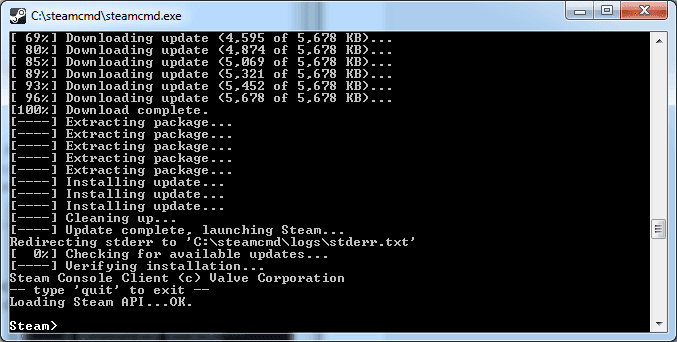
SteamCMD is a console tool for installing and updating server applications. The Dedicated Server Rust has App ID 258550. It installs anonymously, so a separate server Steam account is not needed. Use the original version of SteamCMD, not modified builds.
Create separate directories, for example C:\steamcmd and C:\rustserver. Do not install the server over the game client folder. Separation simplifies updates, backups, and diagnostics.
Installing the server via SteamCMD
Run SteamCMD and sequentially set the directory, anonymous login, and application download:
force_install_dir C:\rustserver
login anonymous
app_update 258550 validate
quit
The validate parameter checks files and is useful for the initial installation or in case of corruption. For regular updates, apply it consciously: if the server is modified, the check can replace modified binary files. After completion, RustDedicated.exe will appear in the directory.
Minimum launch command
For Windows, create a separate startup file that launches the server without a graphical interface and passes basic parameters:
RustDedicated.exe -batchmode ^
+server.port 28015 ^
+server.queryport 28017 ^
+server.level "Procedural Map" ^
+server.seed 12345 ^
+server.worldsize 3500 ^
+server.maxplayers 50 ^
+server.hostname "My Rust Server" ^
+server.identity "main" ^
+rcon.port 28016 ^
+rcon.password "CHANGE_THIS_LONG_PASSWORD" ^
+rcon.web 1 ^
-logfile serverlog.txt
Replace the name, password, and parameters for your project. Do not publish the RCON password and do not use the example literally. Wait for the Server startup complete line before attempting to log in.
What does server.identity mean
server.identity sets a separate instance name. The map, databases, configuration, and user lists are stored in the corresponding directory. If multiple servers are running on one machine, each must have its own identity and ports.
Do not rename the identity without transferring data: a new launch will look like an empty server. Include this directory in the backup and make sure you copy files after a correct world save.
Map, seed, and worldsize
server.seed determines the procedural generation variant, while server.worldsize determines the world size. A large map provides more space and monuments but requires memory, disk space, and loading time. For a small private server, a huge world creates empty distances without benefit.
Before a public wipe, generate the map in advance on a test instance. Check the coast, roads, monuments, and suitable areas. Changing the seed or size creates a different world and requires clear communication to players.
Setting up server.cfg
It's convenient to keep basic ports and identity in the command line, and other parameters in the server\main\cfg\server.cfg file, where main is replaced with your identity. Commands in the config are written without the + and - symbols.
server.hostname "My Rust Server"
server.description "Vanilla server for friends"
server.maxplayers 50
Change one block at a time and restart the test instance. The list of variables is huge; in the server console, the find word command helps find a parameter. Do not insert a config from an unknown project: it may contain unsafe RCON settings or incompatible values.
Which ports does Rust use
The game server.port and query port server.queryport work over UDP and should not overlap. The query port is needed for server list display. RCON uses TCP, and Rust+ uses a separate TCP port. Exact values are set by your configuration.
First achieve local connection, then only open necessary ports in the system firewall. For a home network, set up forwarding to a static local IP of the machine. Do not disable protection entirely for testing.
Local and external connection
On the same computer, open the Rust console with the F1 key and execute client.connect localhost:28015. For players from the internet, a public address, available UDP port, and correct routing are required.
Client commands are detailed in a Rust console guide. If local connection works but external does not, look for issues in the firewall, router, CG-NAT, or provider rules.
Secure RCON setup
RCON allows reading the console and sending administrative commands remotely. Create a long unique password, not used elsewhere, restrict access at the firewall level, and do not disclose the port unnecessarily. For WebSocket connection, use the rcon.web 1 mode.
Do not store the password in a public repository, screenshot, or message to players. If the secret is exposed, immediately change it and restart the server. Grant panel access only to those who truly need moderation.
Assigning an owner and moderator
From the server console, find a player's SteamID64 with the users command, then apply ownerid SteamID "Name" or moderatorid SteamID "Name". The player will need to reconnect. Role changes are saved automatically.
An owner has more authority than a moderator. Do not grant owner for everyday assistance. Differentiate roles and periodically check the user file after an administrator leaves.
Updates and global wipe
Before updating, inform players, save the world, and stop the process correctly. Then run app_update 258550 via SteamCMD. A modified server may require a compatible update of the plugin loader. Do not run old binary files over a new protocol.
Follow the official patch date through a Rust updates reference. Users find it easier to check against a wipe calendar. Announce map and blueprint wipes separately.
Backups
Copy the identity directory, configs, plugin data, and important logs. Keep multiple generations of copies on another disk or remote storage. One folder on the same drive does not protect against its failure.
Periodically restore a copy on a test instance. An archive that has never been checked cannot be considered a backup. Do not copy an active database at a random moment without understanding the save: first perform a server save or stop the process correctly.

Vanilla or modded server
Vanilla uses standard Rust mechanics and is easier to update. Modded adds plugins, accelerated gathering, kits, teleports, or custom events. The more modifications, the more challenging testing after each patch.
Start with a clean server, ensure stability, and only then add one extension at a time. Check the source, compatibility, and plugin rights. After updating SteamCMD, some loaders require reinstallation.
Initial rules and project description
Specify the mode, group limit, wipe frequency, language, support contacts, and prohibited behavior. The description should match the actual settings. If x2 is advertised, the player should not discover a different multiplier after joining.
See how the Rust server page is structured: the user understands the mode in advance and chooses a suitable option. Transparent rules reduce conflicts with moderation.
Diagnosing common issues
- Server won't start: check free memory, directory permissions, and logs.
- Not visible in the list: check query port, firewall, and startup completion.
- Only works on localhost: the reason is usually in routing or CG-NAT.
- Players get version mismatch: update the server and modifications.
- New empty world: check identity, seed, and save location.
- High latency: assess CPU, network, entity count, and plugins.
Change one variable at a time and record the result. Mass configuration replacement hides the real cause.
Pre-launch checklist
- Current stable build is installed.
- Each instance has unique identity and ports.
- RCON is protected with a complex password and firewall.
- Map and rules are tested on a test server.
- Local and external connections are working.
- Saving, backups, and updates are configured.
- Moderator roles and support channel are assigned.
For a first private server, this is sufficient. A public project requires constant monitoring, protection, moderation, and clear communication—operating, not just installing SteamCMD, becomes the owner's main job.
What to learn next
Create a test base following a Rust building guide, check electrical circuits and multiple access levels. Start a new server with low online and a fixed set of rules. Once saves, updates, and recovery become predictable, you can expand the map and add modifications.
Monitoring after launch
Monitor memory usage, CPU load, free disk space, save size, and error frequency in the log. A brief spike during saving is acceptable, while constant overload indicates too large a map, plugin, or insufficient hardware. Record metrics at the same time to see trends.
Check the server from a player's perspective: connection time, listing appearance, voice chat functionality, and interaction delay. RCON shows the technical side but does not replace actual entry. After each configuration change, note the date and reason—without a log, it's impossible to understand which parameter affected stability.
Proper shutdown and automatic restart
Do not force close the process during routine maintenance. Warn players, perform a save, and let the server close the databases properly. Automatic restart is useful after a crash but should not endlessly launch an incompatible build. Limit the number of attempts and keep a log of the stop reason.
Publish a schedule of planned restarts in advance. Choose a low online time and leave room for modification updates. If the process hangs, first gather diagnostic data; constant emergency shutdown can hide the problem and increase the risk of save corruption.
Minimum security policy
Update the operating system, SteamCMD, and server, run the service from a separate account with limited rights. Close all unnecessary incoming ports. Hosting panel, remote desktop, and RCON should have different complex passwords.
Do not pass the identity archive to outsiders: it contains project data. Before installing a plugin, check the source and make a backup. Server security is not just one setting but regular updates, minimal rights, and the ability to quickly restore a clean configuration.


Latest comments