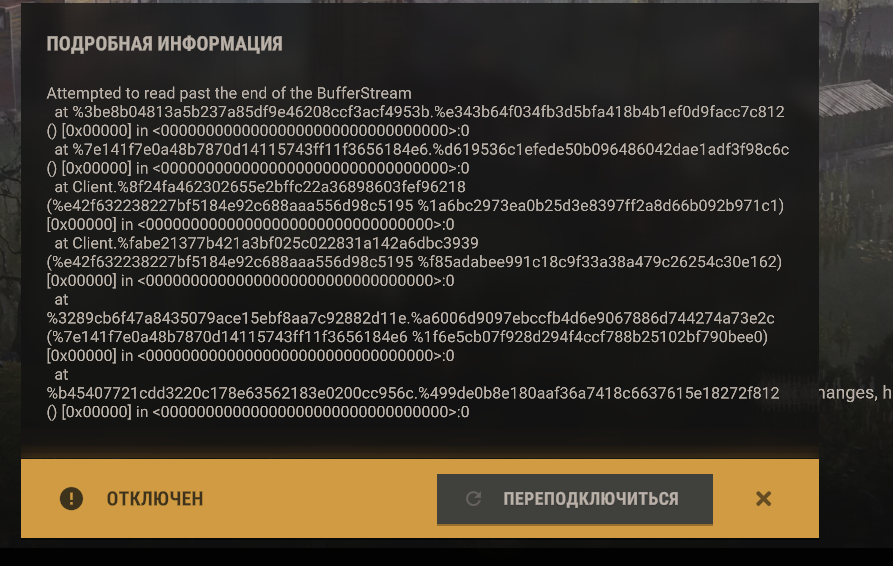





After the recent updates in Rust, some servers have started requiring TPM 2.0 and Secure Boot to be enabled. This can lead to an error message EAC TPM verification failed when trying to connect, along with other messages related to Windows boot verification.
In simple terms, the issue usually lies not with Rust itself, but with Easy Anti-Cheat being unable to confirm the secure boot of the system. This is often resolved by enabling TPM 2.0, Secure Boot, updating BIOS/UEFI, and rechecking Windows settings.
“Servers can now opt-in to requiring TPM and Secure Boot enabled for players to connect to them.”
Why the EAC TPM verification failed error occurs
Usually, the reason is one of the following:
- TPM 2.0 is present but disabled in BIOS/UEFI.
- Secure Boot is supported but not enabled.
- Windows is booted in Legacy/CSM mode instead of UEFI.
- Outdated BIOS causing issues with fTPM/PTT.
- TPM initialization is disrupted or auto-provisioning is disabled.
- Easy Anti-Cheat cannot detect a valid measured boot log.
- The game is launched through a cloud service where the user cannot enable BIOS protection.
What to check first
| What to check | Expected state | How to check |
|---|---|---|
| TPM | TPM 2.0 enabled and ready | Win + R → tpm.msc |
| Secure Boot | Enabled | Win + R → msinfo32 |
| BIOS mode | UEFI | msinfo32 → “BIOS Mode” |
| TPM in PowerShell | TpmPresent=True, TpmReady=True | Run PowerShell as administrator → Get-Tpm |
| Measured boot | No boot log verification errors | Check after reboot and enabling Secure Boot/TPM |
Quick solution steps
- Update Windows and restart the PC.
- Check TPM using
tpm.msc. - Check Secure Boot and UEFI mode using
msinfo32. - If TPM or Secure Boot are disabled, enter BIOS/UEFI and enable them.
- Disable Legacy/CSM if active.
- Update BIOS/UEFI to the latest version.
- Run PowerShell as administrator and check TPM with the commands below.
- Restart the PC and try connecting to Rust server again.
Step 1. Checking TPM 2.0
Press Win + R, type tpm.msc, and press Enter.
What to look for:
- TPM ready for use
- Specification version: 2.0
If TPM is not found, it usually means it's disabled in BIOS/UEFI.
For Intel
- Look for settings like PTT, Intel Platform Trust Technology, or Security Device Support.
For AMD
- Look for settings like AMD fTPM, AMD CPU fTPM, or TPM Device Selection.
Step 2. Checking Secure Boot
Press Win + R, type msinfo32, and press Enter.
Check two fields:
- BIOS Mode should be UEFI
- Secure Boot State should be On
If Secure Boot is unavailable, the issue often lies in the system being installed or booted in Legacy/CSM mode.
Step 3. Checking TPM via PowerShell
Open PowerShell as administrator and run:
tpmtool getdeviceinformation
Get-TpmDesired values should be:
| Parameter | Normal value |
|---|---|
| TPM Present | true |
| TPM Version | 2.0 |
| Is Initialized | true |
| Ready For Attestation | true |
| TpmPresent | true |
| TpmReady | true |
| TpmEnabled | true |
| TpmOwned | true |
| AutoProvisioning | true |
If AutoProvisioning is disabled, you can try:
Enable-TpmAutoProvisioningAfter that, make sure to restart the computer.
Step 4. BIOS/UEFI changes
Specific names may vary by motherboard manufacturer, but the general logic is as follows:
- Enable TPM 2.0:
- Intel → PTT
- AMD → fTPM
- Enable Secure Boot
- Set boot mode to UEFI Only
- Disable CSM / Legacy Boot
- If given a choice for Secure Boot mode, select Standard
- Save changes with F10 and restart
Step 5. If the error persists
Then go through this checklist:
- Update BIOS/UEFI to the latest version.
- Install all Windows updates.
- Check if TPM is disabled after BIOS reset.
- Verify that Secure Boot is truly enabled, not just available.
- Ensure Windows boots in UEFI mode.
- Restart Steam and Rust after system reboot.
- If needed, reinstall Easy Anti-Cheat.
About boot validation errors
Sometimes EAC shows not only EAC TPM verification failed but also messages like:
- Boot validation failed: Measured bootlog not found
- Boot validation failed: PCR mismatch
- Unable to verify Secure boot. Event missing from measured bootlog
Usually, this indicates that EAC cannot correctly confirm the secure boot chain. In such cases, the main actions remain the same:
- Check TPM 2.0
- Check Secure Boot
- Check UEFI instead of Legacy
- Update BIOS
- Update Windows
- Perform a full PC reboot
If you play through GeForce NOW or another cloud service
Here's an important point: if you lack access to BIOS/UEFI settings, you physically cannot enable TPM, Secure Boot, or change boot mode. In this case, the player cannot solve the issue themselves—it becomes a matter for the cloud platform and game publisher.
On a regular PC, this is resolved through system settings, while in the cloud, compatibility must be provided by the service and game developer.
Summary
EAC TPM verification failed in Rust is not a random bug but a result of new anti-cheat requirements on some servers. In most cases, the following steps help:
- Enable TPM 2.0;
- Enable Secure Boot;
- Switch the system to UEFI;
- Update BIOS and Windows;
- Recheck TPM status via PowerShell.
If the error persists after this, it's advisable to focus on the BIOS settings of your motherboard, as the issue often lies there.


Comments (0)